Preview and submit cases
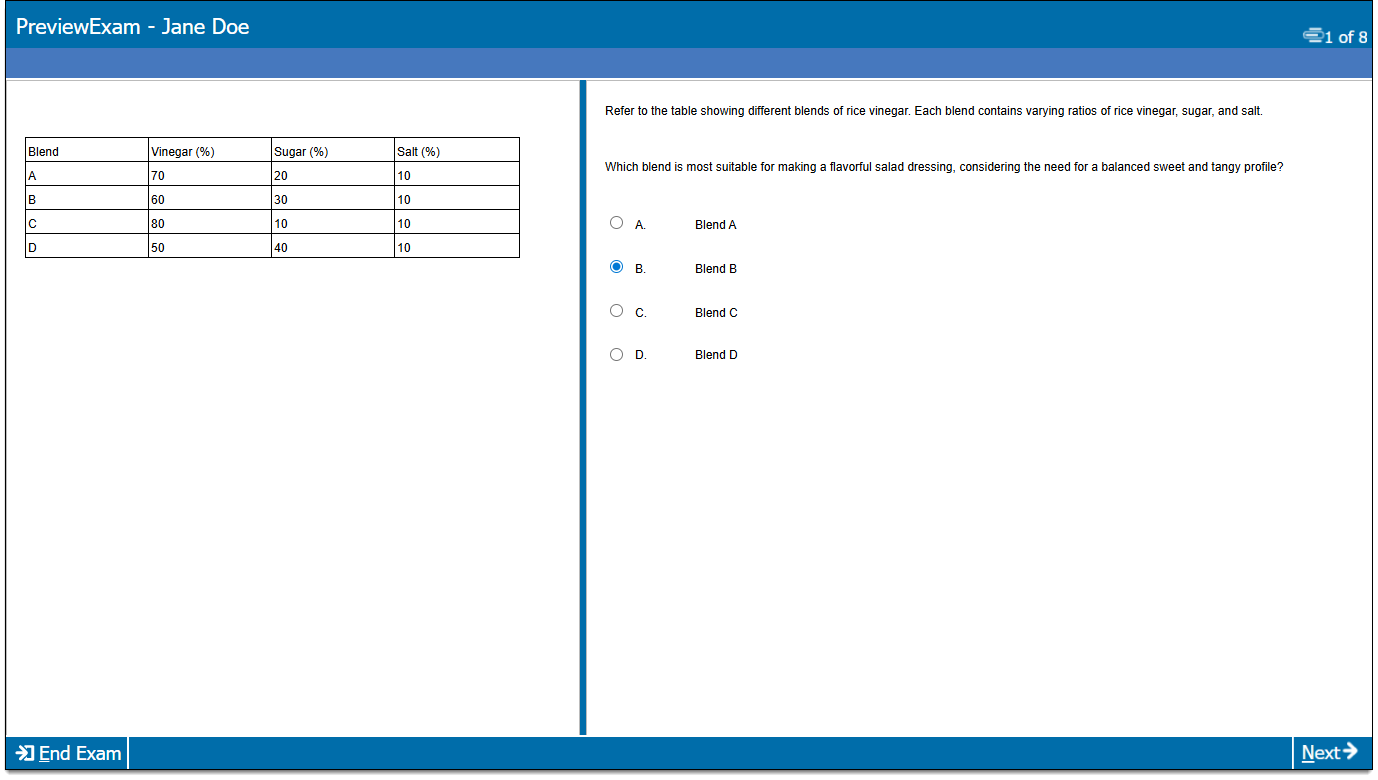
You can preview questions in the case before submitting them for review using a sample browser-based test driver (Exam Preview). This shows how the items will appear to candidates during exam delivery. You can preview the entire case as a group, or preview a single item in the case.
You can submit case questions and exhibits for review one at a time or wait until all case content is ready and submit the entire case at once.
|
|
Preview a case
- On the Assignments page, click the Cases tab.
- Click the ellipsis button
 for the desired case and select Preview.
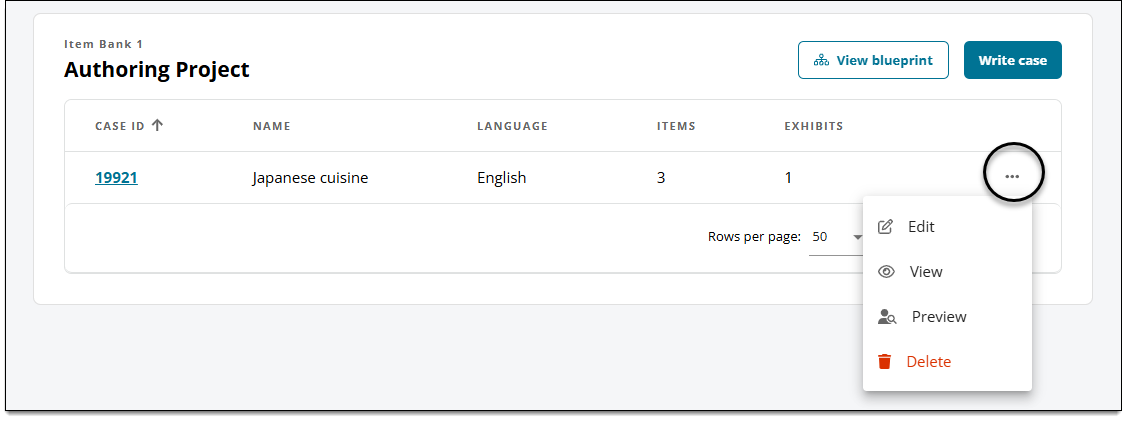
- You can also preview the entire case when editing or viewing the case ↓.
- The case preview launches in a new browser tab.
- All items in the case will be included in the preview, and will be shown in the order that is currently selected in the Case panel of the editor.
- Exhibits will be displayed with items they are used in.
- Delivery settings, if set at the item level, will also be shown (response confirmation, calculator, etc.).
Preview a question in the case
- On the Assignments page, click the Cases tab.
- Click the ellipsis button and select View or Edit to open the case.
- Click Set as focus in the Question header
 . (Skip this step if a question, not an exhibit, is already in focus.)
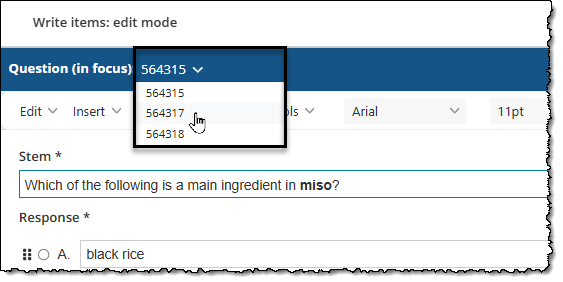
 - Click the drop-down menu in the Question header and select the desired question.
- Click the More menu in the lower-right corner of the page and select Preview.
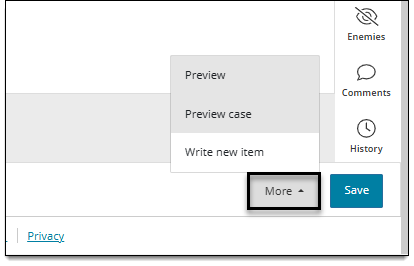
- The preview will launch in a new tab or window in your browser.
- If previewing a single question, only that question will be included in the preview.
- Exhibits will be displayed with items they are used in.
- Certain delivery settings, if changed at the item level, will also be shown (response confirmation, calculator, etc.).

Submit a single question for review
You can submit a single question for review instead of the entire case at once.
|
|
- Click Set as focus in the Question header . (Skip this step if the question is already in focus.)
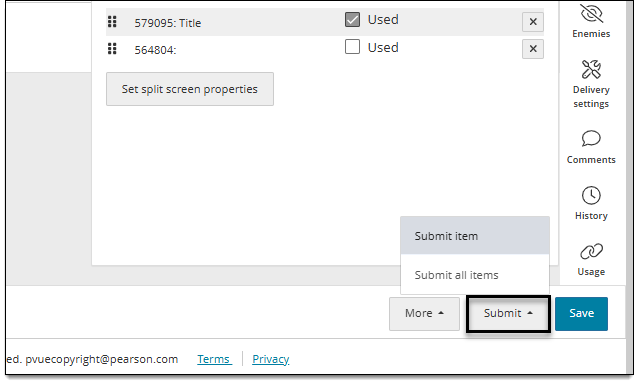
- In the lower-right corner of the page, click Submit > Submit item.
- A confirmation is displayed when the case is successfully submitted.
- Any issues with the question/item (or exhibit, if used in the item) will be displayed at the top of the page and must be corrected before you can submit.
- Once submitted, the case is sent to the next assigned reviewer or stage in your project workflow. You will no longer be able to edit the item or associated exhibits.
- A 'view only' icon is shown in the Case panel for questions and exhibits that are no longer editable.
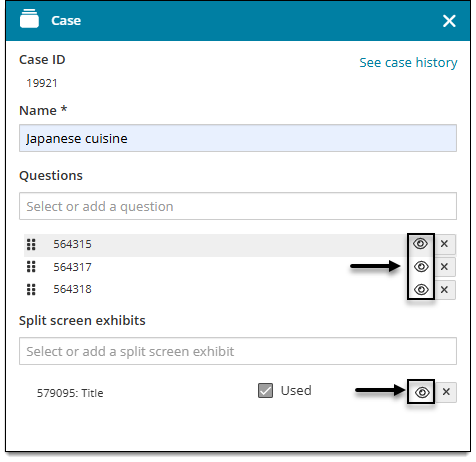
- A 'view only' icon is shown in the Case panel for questions and exhibits that are no longer editable.
Submit all questions for review
|
|
- Click Set as focus in the Question header . (Skip this step if the question is already in focus.)
- In the lower-right corner of the page, click Submit > Submit item.
- A confirmation is displayed when the case is successfully submitted.
 Any issues with the questions or associated exhibits will be displayed at the top of the page and must be corrected before you can submit the case.
 - If you do not have editing rights to all questions in the case, a message is shown stating that you do not have the editing permissions to submit all items in this case. Only the questions for which you have editing permissions will be submitted.
- Once submitted, the case is sent to the next assigned reviewer or stage in your project workflow. You will no longer be able to edit the case.
- A 'view only' icon is shown in the Case panel for questions and exhibits that are no longer editable.
- A 'view only' icon is shown in the Case panel for questions and exhibits that are no longer editable.